
How to Convert Rectangular to Polar in Casio Calculator (fx-991EX, fx-991ES, fx-991MS)
Complete guide on how to convert rectangular to polar in Casio calculator models fx-991EX, fx-991ES PLUS, and fx-991MS. Exact keystrokes for Pol(x,y), recalling r and θ, and angle modes.
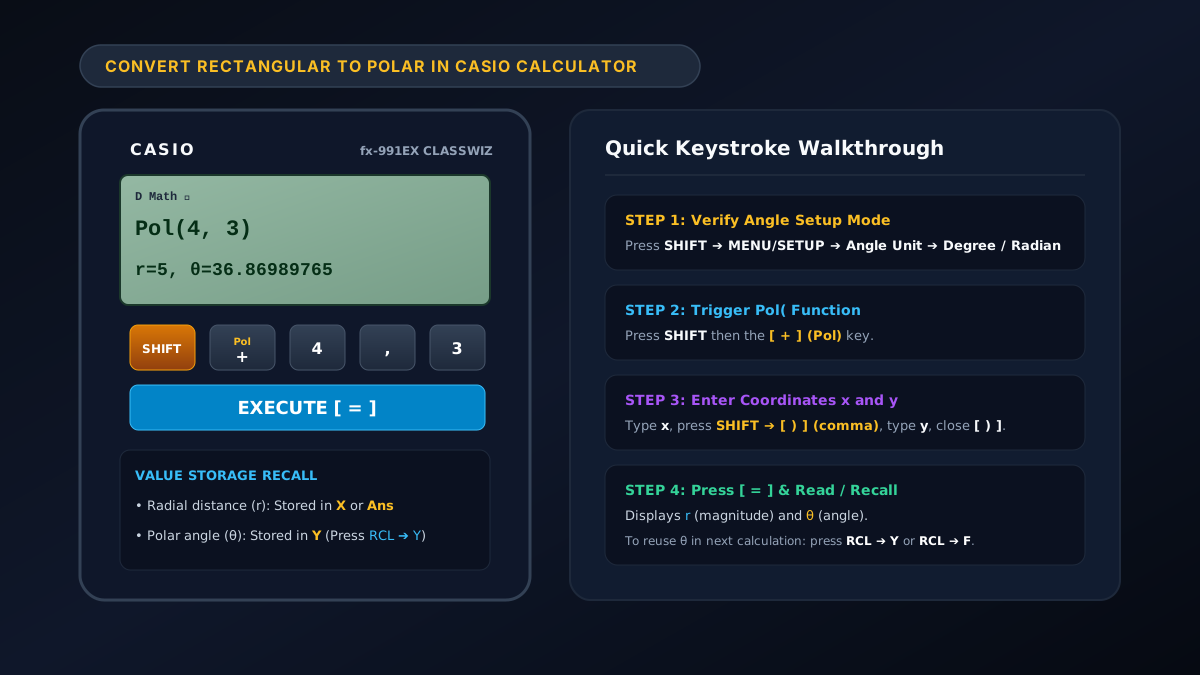
Quick Answer (AEO / AI Overview Summary):
To convert rectangular to polar in Casio calculator scientific models, use thePol(function:
- Press
SHIFTthen[ + ]to activatePol(.- Enter the -coordinate value.
- Press
SHIFTthen[ ) ]to insert the comma,.- Enter the -coordinate value, close with
[ ) ], and press[ = ].- The display returns the radius and angle . To recall stored variables, press
RCLXfor andRCLY(orFon MS models) for .
If you do not have your physical handheld device with you, calculate coordinates immediately using our free rectangular to polar calculator online with steps with live vector graphing and dynamic precision.
Figure 1: Standard button workflow to convert rectangular to polar in Casio calculator series (ClassWiz fx-991EX, Natural Display fx-991ES, and Standard fx-991MS).
Casio Calculator Keystroke Comparison Table
The table below summarizes the exact button sequences, displays, and memory locations for the three most common scientific calculator models:
| Scientific Calculator Model | Keystroke Sequence | Screen Display | Angle () Recall Keystroke |
|---|---|---|---|
| Casio fx-991EX ClassWiz | [SHIFT] [+] (Pol) x [SHIFT] [ ) ] (,) y [ ) ] [=] | r=..., θ=... (Dual Line) | [RCL] [Y] (the S<=>D key) |
| Casio fx-991ES / ES PLUS | [SHIFT] [+] (Pol) x [SHIFT] [ ) ] (,) y [ ) ] [=] | r=... (Scroll ▶ for ) | [RCL] [Y] |
| Casio fx-991MS (Two-Line) | [SHIFT] [+] (Pol) x [ , ] y [ ) ] [=] | r value only on line 2 | [RCL] [tan] (F) |
| Casio fx-991CW (ClassWiz 2.0) | [CATALOG] ➔ Coordinate Conversion ➔ Pol(x, y) | r=..., θ=... | [VARIABLE] ➔ y ➔ [EXE] |
How to Convert Rectangular to Polar in Scientific Calculator fx-991EX
The Casio fx-991EX ClassWiz features a high-resolution LCD that displays both the radial magnitude and angular direction simultaneously on screen.
Step-by-Step Keystrokes for fx-991EX:
- Enter Calculate Mode: Press
MENU, select1: Calculate, and press=. - Set Angle Unit: Press
SHIFTMENU(SETUP)2: Angle Unitselect1: Degreeor2: Radian. - Execute Pol Function:
[SHIFT] ➔ [+] (Pol) ➔ [x-coordinate] ➔ [SHIFT] ➔ [ ) ] (,) ➔ [y-coordinate] ➔ [ ) ] ➔ [ = ] - Worked Example :
- Press
SHIFT+. Screen showsPol(. - Press
4. - Press
SHIFT)to print,. - Press
3. - Press
)then=. - Result: , .
- Press
- Reusing Variables in Subsequent Math:
- The radius is automatically stored in memory variable
XandAns. - The angle is stored in variable
Y. PressRCLS<=>D(Y) to fetch the exact angle without retyping or rounding.
- The radius is automatically stored in memory variable
How to Convert Rectangular to Polar in Scientific Calculator fx-991ES (and fx-991ES PLUS)
The Casio fx-991ES PLUS (and fx-82ES / fx-300ES) utilizes Casio’s Natural V.P.A.M. display. Because the screen width is narrower than the ClassWiz, the angle value is often hidden past the right edge of the screen after pressing =.
Step-by-Step Keystrokes for fx-991ES:
- Configure Angle Unit: Press
SHIFTMODE(SETUP). Press3for Degrees (Deg) or4for Radians (Rad). - Call Pol Function: Press
SHIFTfollowed by the+key (labelledPolin yellow font). - Input Coordinates:
- Type your value.
- Press
SHIFTfollowed by)to insert the comma,. - Type your value and close the bracket
). - Press
=.
- Viewing Hidden Angle ():
- The initial display outputs and a right-arrow indicator
▶at the top right of the LCD. - Press the right directional arrow key
▶on the replay navigation pad to scroll across the formula line and reveal . - Alternatively, press
RCLfollowed by theS<=>Dkey (labelled redY) to display directly.
- The initial display outputs and a right-arrow indicator
How to Convert Rectangular to Polar in Scientific Calculator fx-991MS
The Casio fx-991MS (and fx-82MS, fx-100MS, fx-570MS) is a classic two-line display scientific calculator. It has a dedicated comma key and uses different memory registers for coordinate conversion.
Step-by-Step Keystrokes for fx-991MS:
- Set Angle Mode: Press
MODErepeatedly until theDegRadGraoptions appear. Press1for Degrees or2for Radians. - Access Pol Function: Press
SHIFTthen+(Pol). - Input Coordinates:
- Enter your horizontal coordinate .
- Press the dedicated comma button
[ , ](located directly above the)key). - Enter your vertical coordinate .
- Close the bracket
)and press=.
- Reading the Output on Two-Line Display:
- Line 2 will display the radius immediately.
- To inspect the angle , press
RCLfollowed by thetankey (which accesses internal variable registerF). - Memory Registers: On the fx-991MS series, is stored in variable
Eand is stored in variableF.
Reverse Operation: Polar to Rectangular on Casio Calculators (Rec)
If you have polar coordinates and need to convert back to Cartesian , use the inverse Rec( function:
[SHIFT] ➔ [-] (Rec) ➔ [r] ➔ [SHIFT] ➔ [ ) ] (,) ➔ [θ] ➔ [ ) ] ➔ [ = ]- Example :
Rec(10, 60)yields , .- On the fx-991EX / ES, recall with
RCL Xand withRCL Y. - On the fx-991MS, recall with
RCL Eand withRCL F.
For full inverse derivations, review our detailed guide on polar to rectangular coordinate conversion formulas.
Troubleshooting Common Casio Calculator Pol Errors
| Error Message / Behavior | Cause | Solution |
|---|---|---|
Syntax ERROR | Missing separation comma or open bracket. | Ensure you pressed SHIFT + ) to insert , between and , and closed with ). |
Math ERROR | Negative radial input in Rec( or undefined input. | In reverse conversion Rec(r, θ), radial distance must be non-negative (). |
| Incorrect Angle Output | Angular mode mismatch (Degrees vs Radians). | Check the top indicator on the display: D indicates degrees, R indicates radians. Reset in SETUP. |
| Angle disappears on screen | Screen display truncation on fx-991ES / fx-82MS. | Press RCL Y (ClassWiz/ES) or RCL F (MS) to retrieve . |
When to Use an Online Calculator vs Casio Scientific Calculator
While handheld Casio scientific calculators are essential for exam environments (e.g., AP Calculus, FE/PE engineering exams, SAT/ACT), an online web tool provides distinct advantages for coursework, design analysis, and electrical engineering:
- Interactive Step-by-Step Derivations: Shows exact Pythagorean calculations and arctangent substitutions rather than just numerical answers.
- Dynamic Live Vector Visualization: Plots points directly on a Cartesian grid with quadrant coloration.
- Phasor & Complex AC Circuit Support: Converts rectangular impedances directly to magnitude and phase angles.
Try our rectangular to polar calculator online free for comprehensive derivations and instant verification of your manual calculator keystrokes.
Frequently Asked Questions (FAQ)
How do I convert rectangular to polar in Casio calculator fx-991EX?
Press SHIFT + + to open Pol(, enter , press SHIFT + ) to insert the comma ,, enter , close with ), and press =. The screen outputs and side-by-side.
How do I convert rectangular to polar in scientific calculator fx-991es?
On the fx-991ES PLUS, press SHIFT + + (Pol), enter , press SHIFT + ) for comma, enter , close ), and press =. The radius appears on screen. Press the right arrow key ▶ or press RCL + Y to view the angle .
How do I convert rectangular to polar in scientific calculator fx-991ms?
On the fx-991MS, press SHIFT + + (Pol), enter , press the dedicated comma key [,], enter , close ), and press =. To view the angle , press RCL then tan (which calls variable register F).
Can I do complex number rectangular to polar conversion on Casio?
Yes. On the fx-991EX ClassWiz, enter Menu 2: Complex, type your rectangular form (e.g. 4 + 3i), press OPTN, scroll down with ▼, select 1: ▶r∠θ, and press =.
How do I convert rectangular to polar on a TI-84 instead of a Casio?
Texas Instruments graphing calculators use two separate functions, R►Pr( for the radius and R►Pθ( for the angle, in the [2nd] [APPS] ANGLE menu. See the full keystroke guide for rectangular to polar on the TI-84 Plus CE and TI-36X Pro.