
Rectangular to Polar on TI-84 Plus CE and TI-36X Pro: Exact Keystrokes
Convert rectangular to polar on a TI-84 Plus, TI-84 Plus CE, or TI-36X Pro. Exact keystrokes for R►Pr( and R►Pθ(, the complex ►Polar method, and how to fix negative angles.
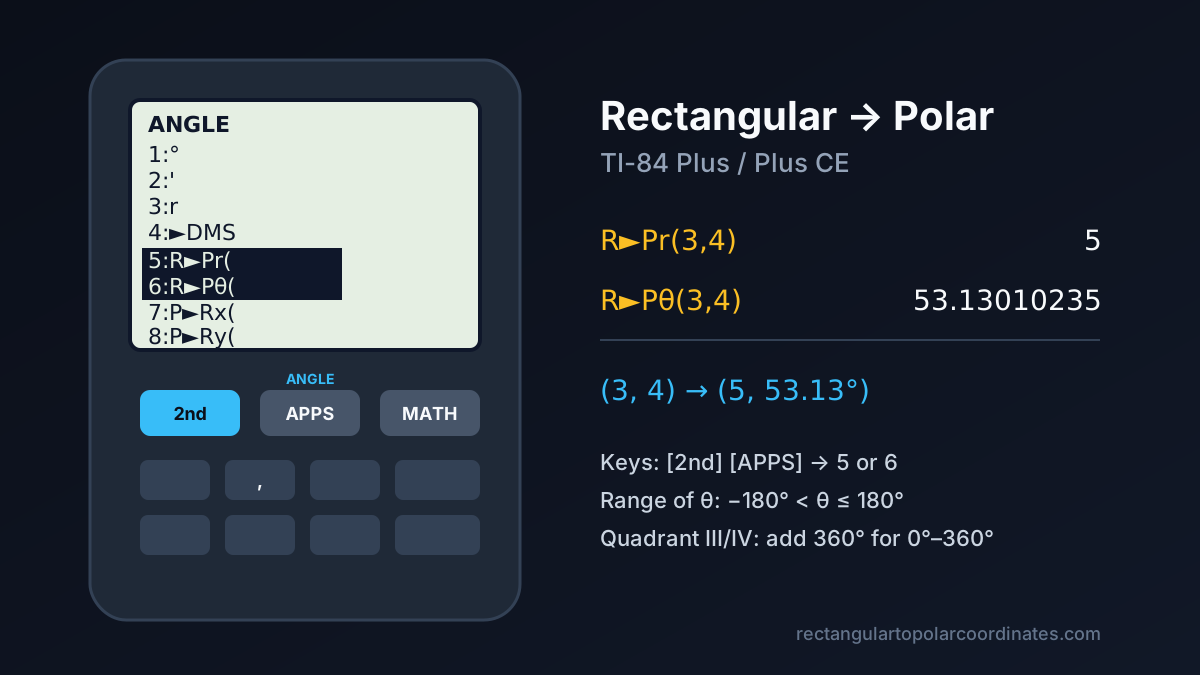
Quick answer: On a TI-84 Plus or TI-84 Plus CE, press
[2nd][APPS]to open the ANGLE menu. Choose5:R►Pr(, typex , y )and press[ENTER]to get r. Open the menu again, choose6:R►Pθ(, type the samex , y )and press[ENTER]to get θ. The angle comes out in whatever unit your calculator’s MODE is set to (DEGREE or RADIAN).
The TI-84 has no single “convert” button that returns both values at once like the Casio Pol( function does. Instead it gives you one function for the radius and one for the angle. This guide covers both TI-84 methods, the reverse conversion, the TI-36X Pro, and the one mistake that causes most wrong answers: the angle range.
If you just need the answer, the rectangular to polar calculator on our homepage does the conversion and shows each step.
Figure 1: The TI-84 ANGLE menu. Items 5–8 are the four coordinate conversion functions.
Step 0: Set Degree or Radian Mode First
Press [MODE], move down to the row that shows RADIAN DEGREE, highlight the unit you want, and press [ENTER]. Then press [2nd] [MODE] (QUIT) to return to the home screen.
This matters because R►Pθ( returns the angle in the current mode. The same point gives 53.13010235 in DEGREE mode and 0.927295218 in RADIAN mode, and both are correct.
Method 1: R►Pr( and R►Pθ( (TI-84 Plus, Plus CE, TI-83 Plus)
The ANGLE menu is the second function of the [APPS] key. It contains:
| Item | Function | What it returns |
|---|---|---|
5:R►Pr( | Rectangular → polar radius | |
6:R►Pθ( | Rectangular → polar angle | , in the current angle mode |
7:P►Rx( | Polar → rectangular x | |
8:P►Ry( | Polar → rectangular y |
Worked example: convert (3, 4) to polar
- Press
[2nd][APPS]5→ the screen showsR►Pr( - Type
3[,]4[)]and press[ENTER]→5 - Press
[2nd][APPS]6→ the screen showsR►Pθ( - Type
3[,]4[)]and press[ENTER]→53.13010235(DEGREE mode)
So in rectangular form is in polar form.
The [,] key is the comma key in the row above [7] [8] [9]. Do not use the decimal point.
Tip: you can skip retyping the coordinates. After step 2, press [2nd] [ENTER] (ENTRY) to recall R►Pr(3,4), move the cursor onto r, and replace the function with R►Pθ( from the menu.
Entering negative coordinates
Use the negation key [(−)] (next to [ENTER] on the bottom row) for negative numbers, not the subtraction key [−]. Typing R►Pr(−3,−4) with the subtraction key gives ERR:SYNTAX.
Texas Instruments’ own knowledge base example converts : R►Pr(−1,0) returns 1 and R►Pθ(−1,0) returns 3.141592654 in RADIAN mode, which is .
The Negative-Angle Trap (Quadrants III and IV)
R►Pθ( returns an angle in the range (or in radians). That is the same convention as the atan2(y, x) function in most programming languages, and it always picks the correct quadrant. However, points below the x-axis come back as negative angles:
| Point | Quadrant | R►Pθ( result (DEGREE) | Same angle in 0°–360° |
|---|---|---|---|
| I | |||
| II | |||
| III | |||
| IV |
Both columns describe the same direction. If your textbook or homework system expects , add to any negative result (or in radian mode). Our guide to quadrants and atan2 explains why this happens.
Method 2: Complex Numbers with ►Polar (TI-84 Plus CE)
If you work with phasors or impedance, it is often faster to treat the point as the complex number .
- Type
3[+]4[2nd][.]. Theisymbol is the second function of the decimal key, so the screen shows3+4i. - Press
[MATH], then press the right arrow to the CPX tab. - Choose
7:►Polarand press[ENTER].
In DEGREE mode the result is displayed in exponential form, . That means and , the same as .
You can also pull out each part separately from the same CPX menu:
5:abs(3+4i )returns the magnitude 54:angle(3+4i )returns the angle 53.13010235
To go the other way, type the polar form and use 6:►Rect. If you want every answer shown in polar form automatically, change the complex format row in [MODE] from a+bi to re^θi.
For more on why engineers use this form, see converting complex numbers from rectangular to polar form and our AC circuit phasor guide.
Polar to Rectangular on the TI-84
Use items 7 and 8 of the ANGLE menu. For in DEGREE mode:
[2nd][APPS]7→P►Rx(5,53.13)[ENTER]→ about3.0000[2nd][APPS]8→P►Ry(5,53.13)[ENTER]→ about4.0000
The tiny difference from exactly 3 and 4 comes from rounding the angle to 53.13. Use the full value 53.13010235 to get 3 and 4 exactly. The math behind these functions is explained in polar to rectangular formulas and examples.
TI-36X Pro (Scientific Calculator)
The TI-36X Pro handles the conversion through its complex-number menu. This is the method Texas Instruments documents in its TI-36X Pro knowledge base article:
Rectangular to polar
- Enter the number in rectangular form, for example
4.33 + 2.50i - Press
[2nd][complex] - Select
4: ►r∠θand press[enter] - With two-decimal display, the result is
5.00∠30.00, meaning and
Polar to rectangular
- Type
5, then press[2nd][complex]and select1: ∠ - Type
30and press[enter] - The result is
4.33+2.50i
The TI-36X Pro also has rectangular/polar conversion functions in its angle menu, labeled angle on the keypad. The menu numbering varies between keypad versions, so check the R►P section of the official TI-36X Pro guidebook for your model.
Troubleshooting
| Problem | Likely cause | Fix |
|---|---|---|
| Angle is 0.927 instead of 53.13 | Calculator in RADIAN mode | [MODE] → select DEGREE |
| Angle is negative | Point is in Quadrant III or IV | Add 360° (or ) |
ERR:SYNTAX | Subtraction key used for a negative number | Use the [(−)] key |
| Answer differs slightly from the textbook | Rounded angle used as input | Use more decimal places, or the stored Ans value |
Frequently Asked Questions
Can the TI-84 convert rectangular to polar in one step?
Not with the ANGLE menu, because R►Pr( and R►Pθ( each return one value. The complex-number method (MATH → CPX → ►Polar) returns both and in one expression.
Why does my TI-84 give a negative angle?
R►Pθ( uses the range . Negative results are correct directions measured clockwise. Add 360° if you need a positive angle.
Does this work on the TI-83 Plus and TI-84 Plus Silver Edition?
Yes. The ANGLE menu items R►Pr(, R►Pθ(, P►Rx( and P►Ry( are in the same place ([2nd] [APPS]) across the TI-83 Plus and TI-84 Plus family.
How do I check my answer?
Enter the same point in our online rectangular to polar converter. It shows , in degrees or radians, the quadrant, and every intermediate step. If you also use a Casio, see how to convert rectangular to polar on a Casio calculator.