
How to Convert Rectangular to Polar in Casio Calculator: Step-by-Step Keystrokes
Learn how to convert rectangular to polar in Casio calculator models (fx-991EX, fx-991CW, fx-9750GIII, fx-82MS). Exact button sequences for Pol(x,y) and storing r and θ.
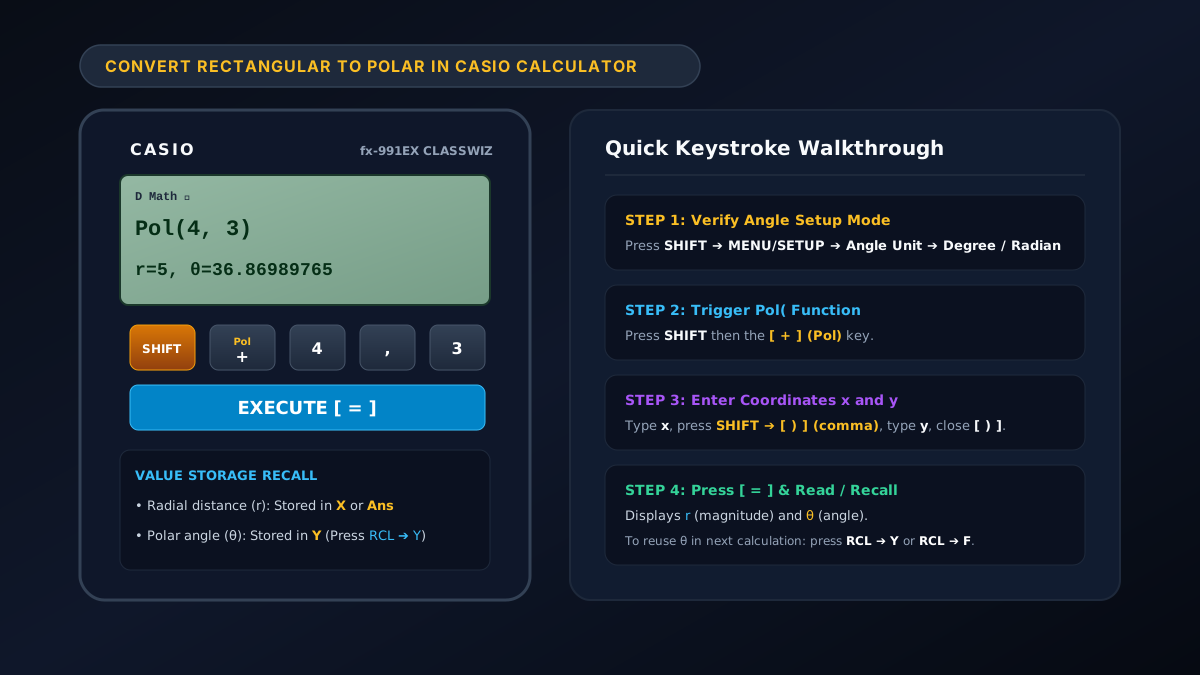
To convert rectangular to polar in Casio calculator models (such as the fx-991EX ClassWiz, fx-991CW, fx-82MS, and fx-300ES PLUS), use the built-in Pol( function. Press SHIFT followed by the [ + ] (Pol) button, type your horizontal coordinate $x$, press SHIFT and [ ) ] (comma), enter your vertical coordinate $y$, close the parenthesis with [ ) ], and press [ = ].
Figure 1: Complete button sequence and display output to convert rectangular to polar in Casio calculator series.
This feature calculates both the radial distance ($r$) and the polar angle ($\theta$) instantly while handling quadrant signs automatically. If you don’t have your scientific calculator nearby, you can use our free browser-based rectangular to polar converter for immediate calculations.
Model-by-Model Keystroke Guide for Casio Calculators
Different generations of Casio scientific calculators use slightly different menu structures. Find your model below for the exact keystrokes:
1. Casio fx-991EX ClassWiz & fx-570EX
The ClassWiz series displays high-resolution natural textbook displays with dual-line output:
[SHIFT] ➔ [+] (Pol) ➔ [x-value] ➔ [SHIFT] ➔ [ ) ] (,) ➔ [y-value] ➔ [ ) ] ➔ [ = ]- Example Point $(4, 3)$:
- Press
SHIFTthen+. The screen displaysPol(. - Enter
4. - Press
SHIFTthen)to produce the comma,. - Enter
3. - Close parenthesis
)and press=. - Display Output:
r=5, θ=36.86989765
- Press
2. Casio fx-991CW & fx-570CW (New ClassWiz)
- Ensure the calculator is in Calculate mode.
- Press
CATALOG$\to$ Coordinate Conversion $\to$ **Pol(`. - Enter
x, pressSHIFT$\to$(,), entery, press). - Press
EXEto display $r$ and $\theta$.
3. Casio fx-991ES PLUS / fx-82ES / fx-300ES PLUS
- Press
SHIFTthen+(Pol). - Input
x, pressSHIFTthen)(,), inputy, close). - Press
=. - Press the right arrow key
▶to scroll and view $\theta$ if the screen truncates the angle.
4. Casio fx-82MS / fx-991MS / fx-100MS (Standard Two-Line Series)
- Press
Pol(directly (above the+key withSHIFT). - Type
x$\to$,(dedicated comma key) $\to$y$\to$). - Press
=. The screen displays $r$. - Press
RCLthenF(ortan) to display the angle $\theta$.
How to Recall and Reuse $r$ and $\theta$ from Memory
After executing Pol(x, y), Casio calculators automatically save the results into internal memory variables so you can use them in subsequent formulas:
| Calculator Model | Radial Distance ($r$) Stored In | Polar Angle ($\theta$) Stored In | How to Recall the Angle ($\theta$) |
|---|---|---|---|
| fx-991EX / ClassWiz | Variable X (and Ans) | Variable Y | Press RCL then Y (the S<=>D key) |
| fx-991CW | Variable x | Variable y | Press VARIABLE $\to$ select y $\to$ EXE |
| fx-991ES PLUS | Variable X | Variable Y | Press RCL then Y |
| fx-82MS / MS Series | Variable E | Variable F | Press RCL then F |
Pro Tip: Reusing the stored $\theta$ variable prevents rounding errors when calculating complex AC circuits or phasor division!
Setting Angle Mode: Degrees vs Radians on Casio
Before running Pol(x, y), always ensure your calculator is set to your preferred angular unit:
- For fx-991EX / ClassWiz:
- Press
SHIFT$\to$MENU(SETUP). - Select 2: Angle Unit.
- Choose 1: Degree (D symbol at top) or 2: Radian (R symbol at top).
- Press
- For fx-991ES / ES PLUS:
- Press
SHIFT$\to$MODE(SETUP). - Press
3for Deg or4for Rad.
- Press
Reverse Conversion on Casio: Polar to Rectangular (Rec)
To convert polar coordinates $(r, \theta)$ back to rectangular $(x, y)$ on a Casio calculator, use the Rec( function:
[SHIFT] ➔ [-] (Rec) ➔ [r] ➔ [SHIFT] ➔ [ ) ] (,) ➔ [θ] ➔ [ ) ] ➔ [ = ]- Example $(r=5, \theta=36.87^\circ)$:
Rec(5, 36.87)$\to$ DisplaysX=4, Y=3.
Troubleshooting Common Casio Coordinate Errors
Syntax ERROR: You forgot the comma between $x$ and $y$ or missed the closing parenthesis. Remember to useSHIFT+)for the comma.- Unexpected Angle Value: The calculator was set to Radians instead of Degrees (or vice versa). Check the top of the display for D or R.
- Negative Coordinates: Use the negative sign key
(-)rather than the minus subtraction key−when entering negative coordinates likePol(-5, 12).
If you develop engineering software, educational platforms, or scientific calculation tools, explore the software engineering services at Shahab Dev.
Frequently Asked Questions (FAQ)
How do I convert rectangular to polar in Casio calculator fx-991EX?
Press SHIFT + + to open Pol(, enter your $x$ coordinate, press SHIFT + ) for a comma, enter your $y$ coordinate, close with ) and press =. The calculator outputs $r$ and $\theta$.
Where is the comma button on Casio calculators?
On most modern Casio models (fx-991EX, fx-991ES), the comma is located as a yellow shift function above the right parenthesis key ). Press SHIFT followed by ) to type ,.
How do I see the angle if it disappears from the screen?
On older two-line models (fx-82MS), the screen initially shows only $r$. Press RCL followed by F (or Y on ClassWiz) to view the angle $\theta$.
Can I convert complex numbers directly in Complex Mode?
Yes. On the fx-991EX, enter Menu $\to$ 2: Complex, type your complex number (e.g. 4 + 3i), press OPTN $\to$ scroll down $\to$ select 1: ▶r∠θ $\to$ press =. Learn more in our rectangular to polar circuits guide.